User Interface
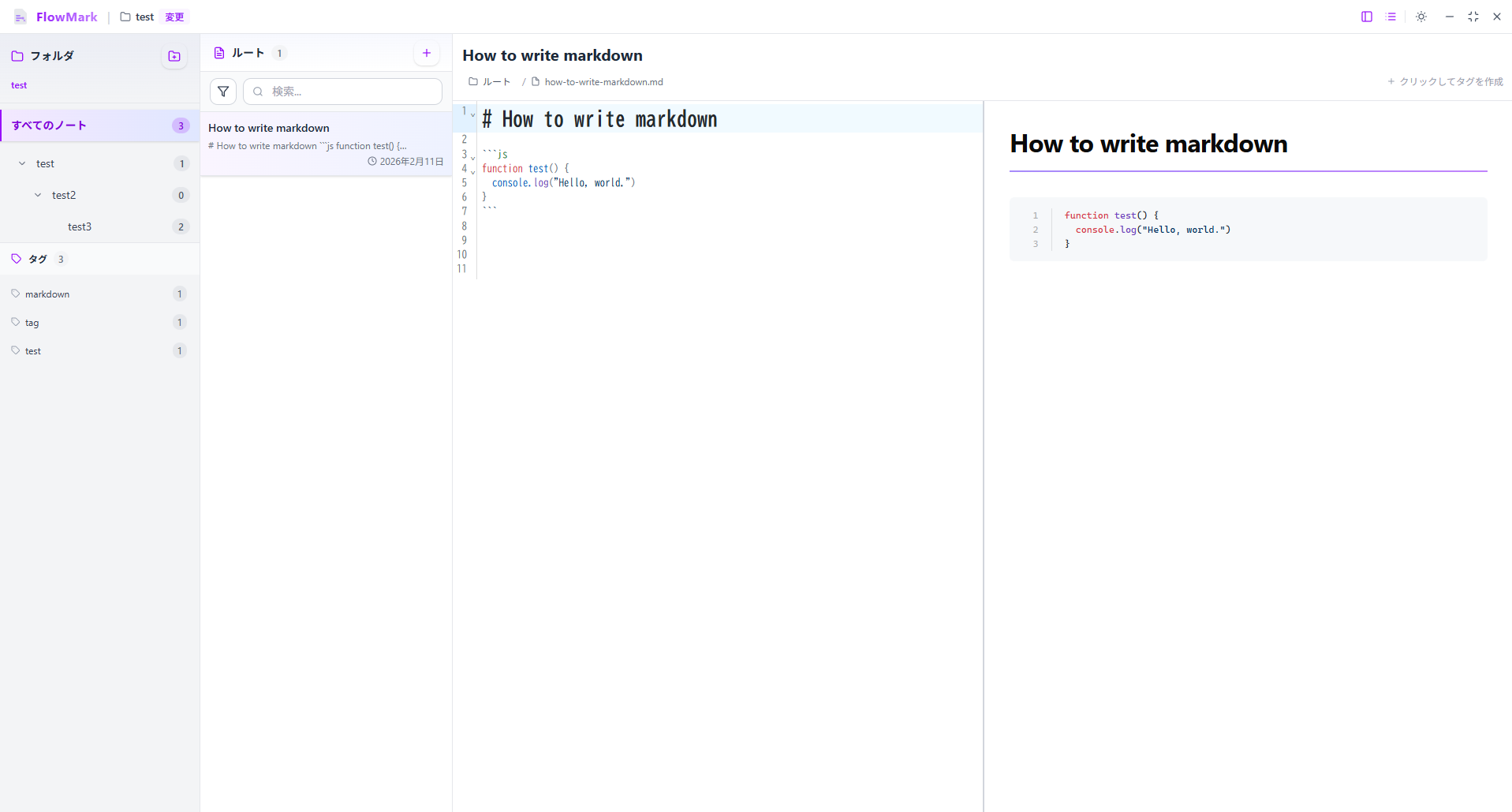
FlowMark’s UI is made up of three main sections.
- Sidebar: The sidebar on the left displays the folder tree and allows you to manage notes hierarchically.
- Note List: Next to the sidebar, you can see a list of Markdown notes in the selected folder for quick access.
- Editor: On the right side of the screen, there is a Markdown editor for editing the selected note, with real-time preview support.
Create a New Folder
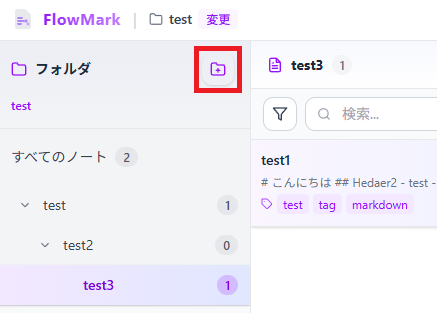
Section titled “Create a New Folder”Click the “New Folder” button at the top of the sidebar to create a new folder inside the currently selected folder. This helps you organize your notes in more detail. You can also double-click a folder to move through folder levels like breadcrumbs.
Create a New Note
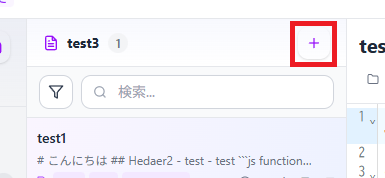
Section titled “Create a New Note”Click the “New Note” button at the top of the note list to create a new Markdown note inside the currently selected folder. This allows you to quickly start editing a new note. When you are in a specific folder, creating a note will place it in that folder. Clicking on a note will display it in the editor for editing.